
How Tree Supports Improve Creality 3D Printing?
Key Features
- Tree supports mimic natural trees with angled branches that minimize material use while providing stable support.
- They consume less filament compared to traditional linear supports, reducing overall printing costs.
- By avoiding direct contact with large flat surfaces, they minimize scarring and post-processing.
- Tree supports are designed to snap off cleanly, reducing the risk of damaging delicate prints.
Have you ever wondered how complex 3D models with overhangs and intricate angles are printed without collapsing midway? This is where tree supports come in an innovative support style that has revolutionized the way Creality 3D printers handle challenging designs. According to the Wohlers Report 2024, the global 3D printing industry surpassed $21 billion, with desktop FDM printers like Creality leading consumer adoption. More than 64% of users report difficulties with support removal, making tree support one of the most significant developments in slicing software optimization.
Quick Answer
Tree supports in Creality 3D printing are lightweight, branch-like structures that grow around a model to hold up overhangs. They use less filament, are easier to remove, and protect surface detail compared to standard supports.
A study conducted by 3D Hubs in 2023 found that support structures account for nearly 30–50% of print material waste in traditional FDM printing. With tree supports, waste can be reduced by as much as 20–35%, making them not just an aesthetic solution but also an economical and sustainable choice. In regions where filament costs have risen by 12% annually, reducing waste is a critical factor for hobbyists, educators, and professional designers alike.
Creality, one of the world’s most popular 3D printing brands, has embraced this feature in slicers like Cura and Creality Print. For the millions of Creality users across 192 countries, tree supports have opened new opportunities to print complex models such as figurines, props, and engineering prototypes with significantly less post-processing effort.
Why Do We Need Support in 3D Printing?
3D printing is always fighting against gravity. As plastic is laid down layer by layer, steep overhangs or floating sections cannot be printed “in thin air.” Without help, these parts droop or collapse. Supports act as temporary scaffolding to hold your design in place until the job is complete.
Creality printers, such as the popular Ender and CR series, rely on slicer-generated supports to make complex models possible. The challenge is to use supports that do their job while causing minimal waste and cleanup. This is where trees support excel.
How to Add Support to 3D Prints?
Adding support is one of the most important steps in preparing a model for 3D printing. Here’s how to do it in Creality Print and other popular slicers.

Visit the official Creality website, download the latest version of Creality Print, and install it. Once launched, load your STL or 3MF model into the workspace.
Step 2: Open the Prepare Menu
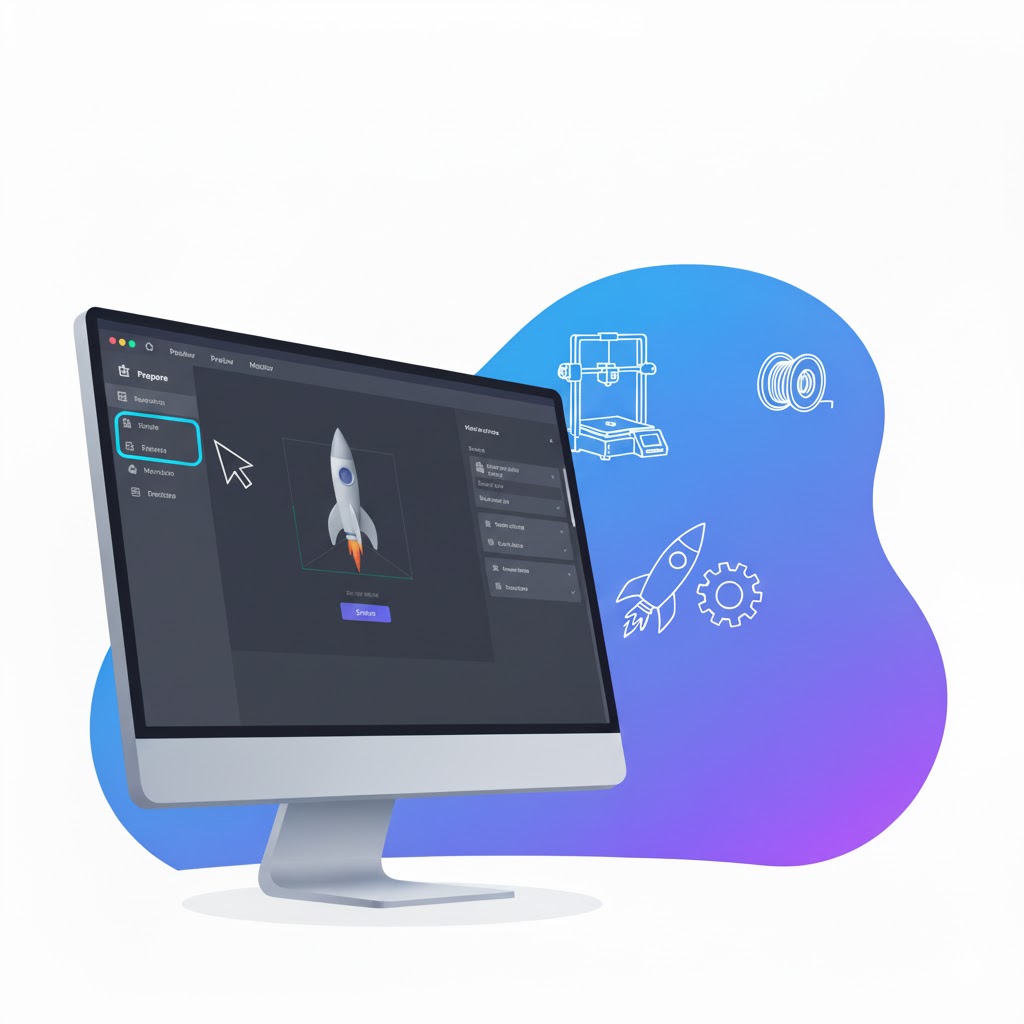
Navigate to the top menu and select Prepare. This is where you’ll find slicing, layout, and support settings for your model.
Step 3: Choose the Support Option

Under the support section, you can select from two main types:
- Normal Supports: Traditional grid-like scaffolds that work well for flat, boxy geometries.
- Tree Supports: Branch-like structures that grow around the model and provide targeted support, ideal for organic shapes and figurines.
Step 4: Adjust Key Parameters
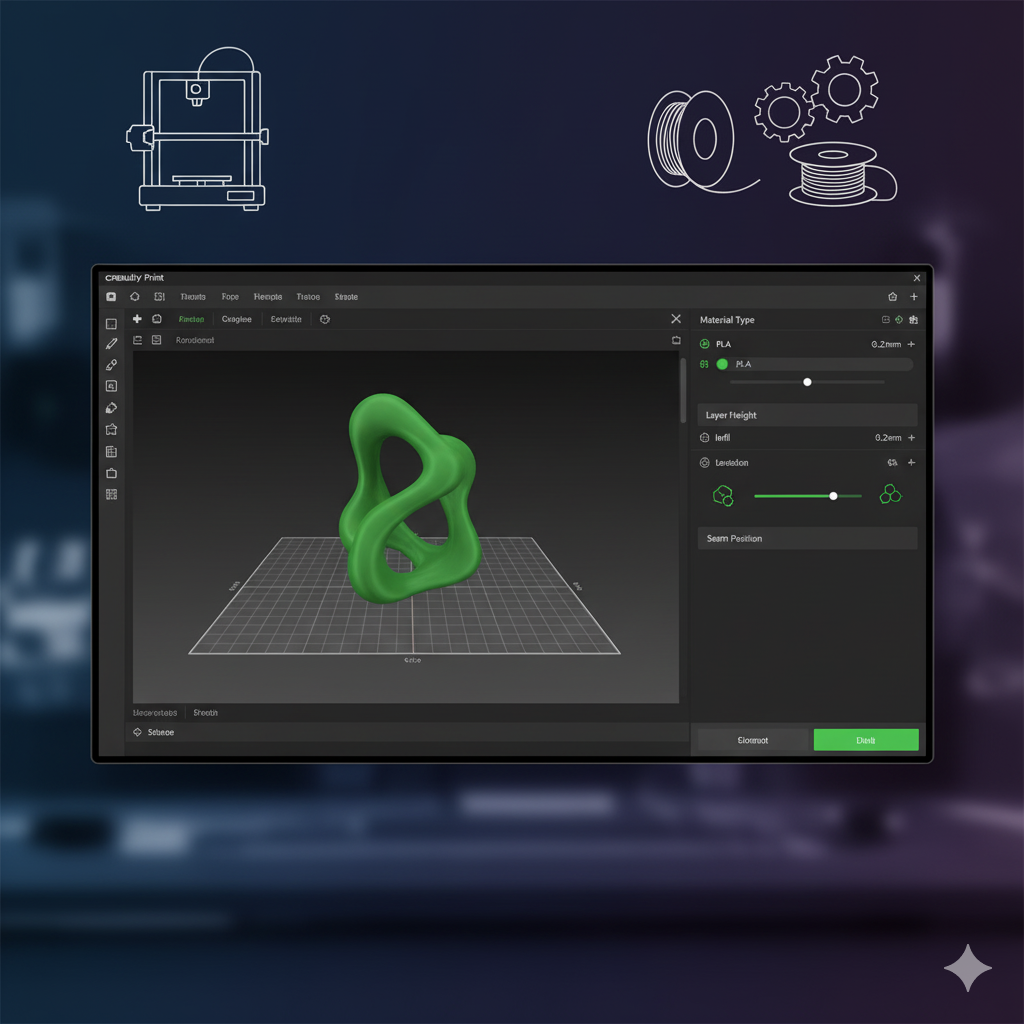
You can fine-tune support placement by changing:
- Overhang Angle: Determines when supports are triggered (e.g., 50°).
- Density: Controls how strong the supports are versus how easy they are to remove.
- Contact Interface: Adds buffer layers to protect the surface of your print.
Step 5: Slice and Preview
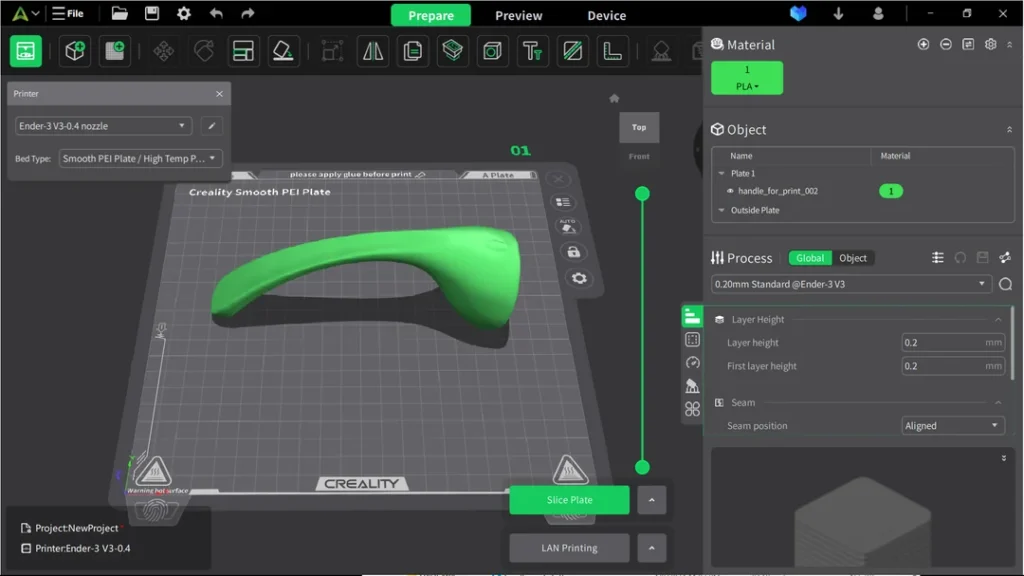
Click “Slice” to generate the toolpath. Use the Layer Preview mode to check exactly where supports will be added before starting the print.
How to Add Supports in Cura
Ultimaker Cura, another widely used slicer for Creality printers, follows a similar process. Load your model, enable “Generate Support,” and choose “Tree” under Support Structure for complex shapes. Cura also offers more customization, such as support blockers and support painting, letting you add or remove supports only in specific areas.
Support Options in Resin Printing Slicers
Resin printers use a different approach, since parts are pulled out of liquid resin instead of built on a solid plate. Dedicated slicers like Chitubox and Lychee provide advanced auto-support algorithms. These programs place optimized support pillars under delicate areas, balancing strength with easy removal. This is crucial in SLA/DLP printing, where even a small unsupported area can cause the print to fail.
Dedicated 3D Support Generators
Beyond slicer software, standalone tools exist for creating and customizing supports. Autodesk MeshMixer is one of the most popular free solutions. It allows you to auto-generate tree-like supports for any STL file or manually place supports exactly where needed. Many users rely on MeshMixer when they want more control before slicing in Creality Print or Cura.
Choosing the Right Support Type
- Use Normal supports for mechanical parts with flat surfaces or sharp angles.
- Use Tree supports for detailed figurines, statues, and models with delicate curves.
- Use Resin slicer supports for SLA/DLP printers, which require optimized pillars.
- Use MeshMixer or similar tools if you want full manual control.
Best Support Pattern for 3D Printing: Which One Should You Choose?
Support structures are essential for successful 3D printing, but not all supports are created equal. The pattern you choose determines how much filament is used, how stable the model is during printing, and how difficult the supports are to remove afterward. By understanding the strengths of each pattern, you can balance quality, cost, and convenience.
Zigzag and Line Patterns
For most FDM printing, Zigzag or Lines are the go-to choices. They are lightweight, quick to generate, and peel away easily after printing. If you’re printing in PLA or another beginner-friendly filament, these patterns provide just enough stability without excessive cleanup. They are ideal for hobby models, figurines, and prototypes that don’t require heavy-duty support.
Grid Pattern
When printing larger models in ABS or PETG, especially those prone to warping, Grid supports are often more reliable. Their cross-hatched structure creates a stronger scaffold that resists shifting during long prints. The trade-off is that they are harder to remove and can leave marks on the model. Grid is best reserved for engineering parts, enclosures, or designs with large flat overhangs that need serious reinforcement.
Concentric Pattern
Concentric supports follow the contour of your model, making them perfect for domes, spheres, and rounded surfaces. By matching the geometry, they distribute stress more evenly and reduce scarring. These supports are particularly helpful when printing artistic or organic designs that include smooth, sweeping curves. However, they can be trickier to remove compared to zigzag supports, especially on large prints.
Tree Supports
Tree supports are not limited to resin printers, they are also popular in FDM slicers like Cura. They grow like branches from a trunk, targeting only the areas that need help. This reduces material waste and minimizes contact with the model, which means less sanding and post-processing. For resin printing, tree-style or “light-touch” supports are especially valuable because they preserve fine details and prevent surface damage.
Resin Printing
SLA and DLP resin printers rely on delicate support pillars that keep prints stable as they rise out of the resin vat. Here, tree-like or thin touchpoint supports are the gold standard. They hold parts firmly while leaving only tiny marks that are easy to sand or polish away. Slicers like Chitubox and Lychee automate this process, offering settings for density, angle, and point size so you can fine-tune support behavior for fragile resin models.
When to Use Support in 3D Printing?
Support is essential when a 3D model cannot be printed without temporary scaffolding. While some designs succeed without them, complex overhangs, bridges, or floating parts almost always require support structures to avoid failure.
Overhangs Beyond 45°
The 45-degree rule is a standard guideline in 3D printing. If an overhang leans out more than 45° from vertical, filament will sag or collapse without help. Supports provide the stability needed to keep these features crisp and accurate.
Bridging Horizontal Gaps
Bridges are spans of filament stretched between two points without material underneath. Short bridges can succeed with cooling and tuning, but longer spans often sag. Adding supports prevents drooping and ensures a stronger, level surface.
Floating or Disconnected Parts
Any feature that begins printing in mid-air will fail without support. Examples include raised details, symbols, or elements not anchored to the build plate. Supports give these parts a solid base so layers adhere correctly.
Common Real-World Examples
Typical cases where supports are essential include:
- Roofs or canopies extending outward from a wall or frame.
- Upside-down holes or cavities where layers must be built over empty space.
- Letters or symbols, such as the top bar of a “T” or the arms of a “Y,” which create steep overhangs.
- Miniature details, like accessories or thin protrusions on figurines, that lack direct contact with the build plate.
By carefully inspecting your model in a slicer’s preview mode, you can identify these areas before printing. Most slicers will even highlight problem zones automatically, allowing you to decide whether supports are absolutely necessary or if you can reorient the model to avoid them.
Are Tree Supports Better Than Grid Supports?
Tree supports and grid supports each serve different needs. Tree supports are lighter, use less filament, and touch the model only at small points, making them easier to remove and ideal for figurines, curved surfaces, or organic shapes. Grid supports, on the other hand, form a rigid scaffold that works better for large, flat overhangs or heavy models that need stronger support.
In practice, tree supports are better for hobbyists, props, and detailed models where surface finish matters. Grid supports are better when stability and strength are the priority, such as with engineering parts in ABS or PETG. The best choice depends on your geometry and material.
Troubleshooting Common Problems with Supports
Even with the right slicer settings, supports can sometimes cause issues like sticking too much, breaking too soon, or failing to hold up overhangs. Here’re the most common problems users face with support and how to fix them effectively.
Supports Fusing to the Model
This often happens with sticky filaments like PETG. Increase the Z-distance (gap between model and support), enable support interface layers, or lower print temperature slightly to reduce adhesion.
Supports Breaking Too Easily
If supports collapse during printing, increase support density (e.g., from 10% to 15%) or add a brim/raft under them for better stability. For tree supports, increase the branch thickness.
Supports Hard to Remove
When supports cling too tightly, reduce density or increase the XY distance. For delicate parts, enable support interface to create a thin buffer that peels off cleanly.
Droopy Overhangs Despite Supports
This can be caused by weak cooling or incorrect orientation. Increase fan speed (for PLA), check slicer preview to ensure supports actually reach the overhang, or re-orient the model to reduce unsupported spans.
Practical Tips and Tricks for Creality Users
Getting the best results with supports isn’t only about choosing tree or grid structures, it’s also about applying small tricks that save time, reduce waste, and improve surface finish.
- Orient your model wisely. Rotate it so the largest flat surface touches the build plate. This often reduces the need for support altogether.
- Use support blockers and painting. In Cura, add supports only where needed instead of covering the whole model. This saves filament and avoids surface scars.
- Keep supports easy to remove. Enable interface layers and set Z-distance to 0.2–0.28 mm (with a 0.4-mm nozzle). This balance makes removal smoother.
- Cool before removing. Let the model rest or even chill it briefly; supports snap off more cleanly when the plastic is firm.
- Invest in simple tools. Flush cutters, a deburring tool, or a plastic scraper make removal faster and safer than pulling supports by hand.
- Test with calibration prints. Use small overhang and bridging tests to tune your support settings before committing to a long print.
Final Words
Tree supports make 3D printing with Creality much easier by saving material, protecting details, and simplifying cleanup. They give hobbyists and professionals the freedom to print more complex shapes without worrying about wasted filament or damaged surfaces. As slicer software continues to improve, tree supports will only become smarter and more reliable, making them an essential tool for anyone who wants cleaner, stronger, and more efficient prints.

Hi, I’m Mark Stevens. I love exploring 3D printing and diving deep into slicer software. I spend my time testing slicer settings, comparing features, and sharing tips to help creators get smoother, faster, and more reliable prints. My goal is to make slicer tools easy to understand and use, whether you’re a beginner or a seasoned 3D-printing enthusiast.

